
Web page to speech · new in 1.0.4
Turn any article into listening
Sandbook reads web pages aloud on iPhone and iPad: paste a link or share a page from Safari, and it keeps the article, drops the clutter and reads it in one of 41 natural voices, marking each word as it is spoken. The article is saved to your library, so it reads offline later. Free, with no account.
iOS 18.2 or later · iPhone 12 or later & iPad · No account
In short
How can I have a web page read aloud on my iPhone?
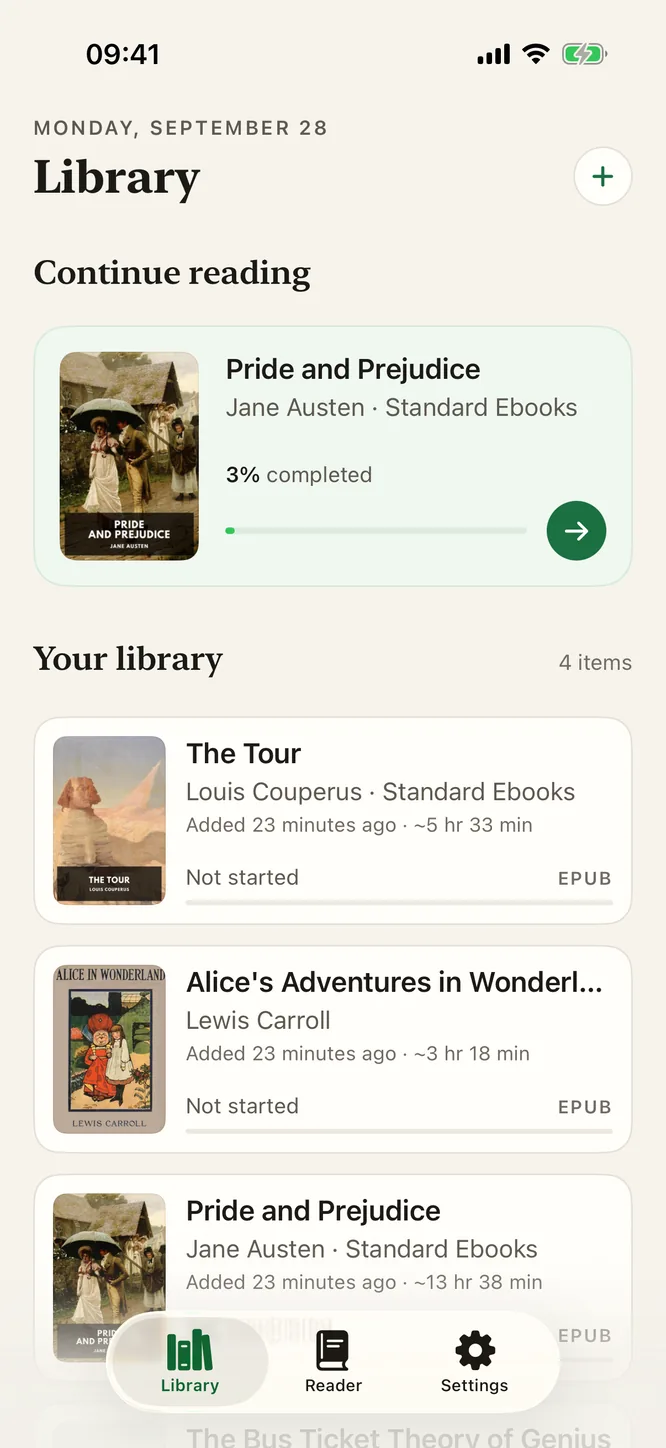
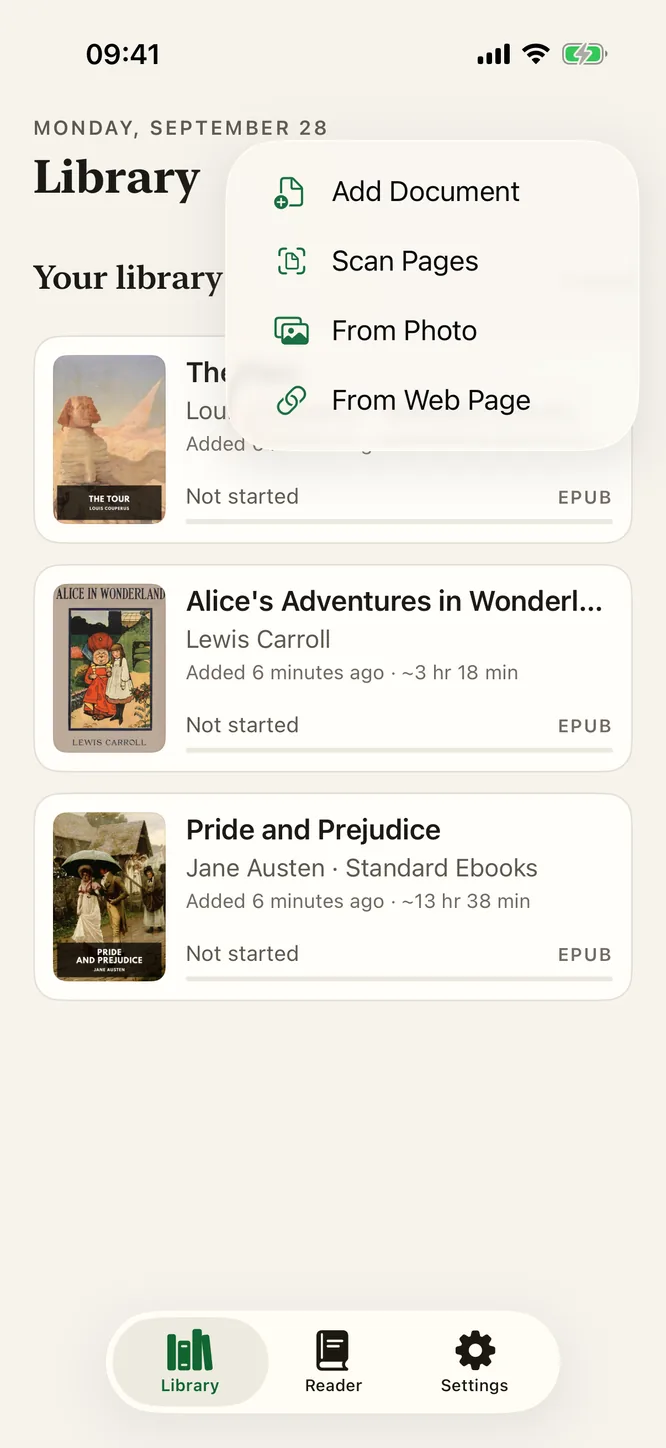
In Sandbook, tap + and choose From Web Page, then paste the link, or share the page from Safari. Sandbook keeps the article with its title, author and site, drops the menus, ads and cookie banners, and reads it aloud in one of 41 natural voices with each word highlighted. The article is saved to your library and reads offline afterwards. It is free, with no account, and needs iOS 18.2 on an iPhone 12 or later.
Last verified 28 September 2026
Two ways in: the + menu and Safari
From Web Page. In the library, tap + and choose From Web Page. Paste the link with the Paste button (no clipboard permission prompt), and Sandbook checks that it is a real web address before fetching anything. A progress card shows while the page downloads, with a Cancel button if you change your mind.
Share from Safari. Reading something in Safari that you would rather hear? Tap Share and choose Sandbook. The link goes into the same path as the + menu, so the result is the same. If the fetch fails, for example with no signal, the page waits in the inbox for Retry or Discard rather than disappearing.
What is kept, and what is left behind
A web page is mostly not the article. Navigation, sidebars, ad slots, cookie banners, newsletter prompts, share rails and “you might also like” widgets all compete with the text, and a reader that speaks them all is unbearable after a minute.
Sandbook reduces the page to the article before a word is spoken. It keeps the title, the author, the date and the site name, and shows them at the top of the article the way a magazine would. The cover in your library comes from the page's own image or its icon, so a shelf of saved articles is recognizable at a glance.
Everything else is dropped. What you hear is the body text of the article, in order.
Read it later, offline
Adding a page is the only step that needs a connection. After that the article is a book in your library, stored on the device, with a word count, a listening-time estimate and your place saved. Queue up a few long reads on Wi-Fi and listen to them on the plane, where offline text to speech is the whole point.
Each article can have its own voice and speed, the same as a book. A long essay in a calm voice at 1.2×, a Spanish news story in a Spanish voice: Sandbook has 41 voices in six languages, and the voice decides the language.
Follow along word by word
The article opens in Sandbook's reader, not in a player. The current paragraph is softly tinted and each word is marked as it is spoken, so you can glance down and find your place. Tap any paragraph to read from there; scroll away and a “Back to current” button brings you back.
Reading Options apply here too: light, sepia or dark, five fonts including Legible, text size and line spacing. It is the same reader as for EPUB books, which is the point: an article saved from the web gets the same care as a book.
Fetched from the site, read on your iPhone
When you add a page, Sandbook requests it, and its cover image or icon, directly from the site that hosts it, exactly as a browser would. There is no Sandbook server in the middle: the address and the article are not sent to anyone else. Reducing the page to the article and generating the speech both happen on your iPhone.
One practical consequence: Sandbook sees what the site serves to a plain request. It does not share Safari's logins or cookies, so a page behind a sign-in usually arrives as a teaser. Public articles, blogs, newsletters on the web and documentation work best. More on what stays on the device is on the private text-to-speech page.
Questions about web pages
How do I get a web page into Sandbook?
Two ways. In the library, tap + and choose From Web Page, then paste the link; Sandbook checks the address before it fetches anything. Or, in Safari, tap Share and choose Sandbook. Either way the article is saved to your library as a book.
What does it keep, and what does it drop?
It keeps the article text, the title, the author, the date and the site name, and uses the page's own image or icon as the cover. It drops the navigation, sidebars, ads, cookie banners, share buttons and related-post widgets, so what you hear is the article.
Can I listen to a saved article offline?
Yes. Adding the page needs a connection, because Sandbook has to fetch it. Once it is in your library it is stored on the device and reads in airplane mode like any other book, with your place saved.
Is the page sent to a Sandbook server?
No. Sandbook requests the page and its cover image directly from the site that hosts it, the way your browser would. The article is reduced and read on your iPhone, and there is no Sandbook server in between.
Does it work with paywalled or logged-in pages?
Only for what the site serves to a plain request. Sandbook does not share Safari's logins, so a page that needs you to be signed in usually arrives as a teaser or a login prompt. Public articles, blogs and documentation work best.
Save the article, listen later
Paste a link or share from Safari, and Sandbook keeps the article and reads it in a natural voice, word by word, offline once it is saved. Free, no account, no subscription.
iOS 18.2 or later · iPhone 12 or later & iPad